The manual · 3 of 14
Sharing
Easy to share, with your files and their names private by default: the three kinds of key, sharing with people or more widely and moving to new keys when someone shouldn’t have one any more.
On this page
A folder syncs only with devices that hold one of its keys, so to share it, you’ll give someone a key. Here’s which key to give, how to send it and what to do when someone shouldn’t have it any more.
Private by default
Your files and their names are private by default: only devices that hold one of the folder’s keys get them, and only the read and write keys open them. Some helpers that setup will suggest do see your addresses: Who sees what says what each one sees.
- Only key holders get in. A device has to prove it holds one of the folder’s keys before it gets anything of the folder, and the proof never gives the key away.
- A new folder is known to no one until someone gives out one of its keys.
- Nothing is on until you’ve answered setup. Setup will ask once, and suggest settings that include public trackers (the DHT, a public directory spread across strangers’ computers) and public relays, both of which bring in computers you don’t know. Say no, and it will show you the settings to pick from; either way, you’ll be able to change any of it later.
- Your local network may see a little. If you take the recommended settings, or turn it on yourself, anyone on your local network can see that your device runs LicketySync, and anyone who knows a folder can confirm it’s there. How devices find each other says what else it shows.
Three keys, three kinds of access
Whoever holds a key can join with that key’s access, on as many devices as they like.

Write key
Read and change everything, and pass on any key. For your own devices, and people you’d trust with every file.

Read key
See everything, change nothing and pass on the read or sealed key. Edits made with it aren’t sent anywhere.

Sealed key
Keep a locked copy, and pass on only the sealed key. For a storage device, such as a home server.
A storage device keeps an encrypted copy, but it isn’t a backup against mistakes: changes and deletions reach it too. It can’t open the folder, but it does see the folder’s shape and the devices it syncs with. Someone running a storage device who knows some of the folder’s files, or got files of their choosing into it, can in time test whether other files they have are in it. Never the files or their names. But it can tell: What a storage device sees has the full list.What a storage device sees
Keys pass down, never up: the write key can make the other two, the read key can make the sealed one, and nothing turns a lower key into a higher one. You’ll be able to upgrade a device by giving it a higher key, and a storage device that gets the read key can open the copy it already holds.
What “the key is the access” means
- Anyone who holds a key can pass it on, to anyone, as often as they like, without asking you.
- Keys don’t expire. They work for as long as the folder exists.
- LicketySync keeps no list of who holds which key, and nothing proves who changed what. Each change names the device it came from, as that device claims, but someone with the write key can claim to be any device.
So hand out keys the way you’d hand out a house key: to people you’d trust with that folder for good.
Sending a key safely
A key travels as a QR code, a link or a small file. Pass it on in person if you can: one device will show the QR code, and the other will scan it. Otherwise, use a channel you already trust to keep the message between the two of you.
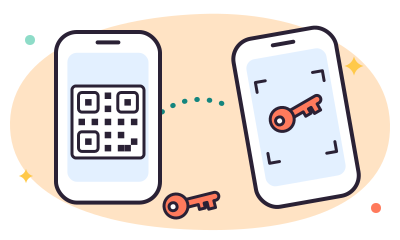
Why not ordinary email or chat? A key works for whoever reads it, for as long as the folder exists, and ordinary email and chat keep copies on computers you don’t control. Treat a key sent that way as leaked; the fix for a leak is a new folder, as below.
- An invite carries only the key: no name, no expiry and no address unless you choose to add your device’s current ones. Invites meant for the browser version will always carry them.
- The write key also comes as 24 words, for writing down. They look like a cryptocurrency wallet’s recovery phrase, and programs that hunt for those will take them for one, so keep them as secret, and type them into nothing but LicketySync.
More about keys and invites
- In a link, the key comes after the
#, the part of a link that browsers never send to any website. - Before it shows a write key, the app will ask for your device’s own password, PIN or fingerprint, every time.
- A write key starts with
lsw, a read key withlsrand a sealed key withlss. Each ends in a checksum that catches typos and bad scans: a damaged key is refused, never guessed at.
Sharing more widely
Anyone who holds a key can join, so a key can go to people you’ve never met: a read key for files you mean to give away, say. With public trackers on at both ends, their devices can look up the addresses of the devices that offer the folder, though finding a device isn’t always reaching it.
What strangers with your read key get. Everything in the folder, now and later, and also:
- which device wrote each version, and when, to the microsecond;
- the names and IDs of the devices they sync with, and which key each one says it holds, which usually shows who has the write key;
- those devices’ addresses, and the hole-punch coordinators they use (helpers that introduce two devices behind home routers);
- which of the folder’s files each device keeps;
- the key itself, to pass on, for good.
If public trackers are on, anyone who has ever had or seen one of the folder’s keys can also find, every day, the addresses of the devices that offer it. And once you share a folder with someone, their devices count as devices you share a folder with: if they help with hole punches, your other folders may use them too, and with the recommended settings your computers will help theirs. When your computer helps their device, that device passes your computer’s address and network ID on to the other devices of the folders you share, never in an invite. So anyone who holds one of those folders’ keys, people you don’t know among them, can learn them and ask your computer for a punch.
So give your devices names you’re happy for strangers to see, and give strangers the read key, never the write key: whoever holds the write key can change or delete everything, for everyone.
Removing someone
There’s no taking a key back. Everyone with the same kind of key holds the very same key, so there’s no shutting out one person while the others keep theirs, and taking back a key wouldn’t take back the files they already have. So to remove someone, or a lost or stolen device, everyone else moves to a new folder with new keys. That is being built, from the command line, and it will go like this:
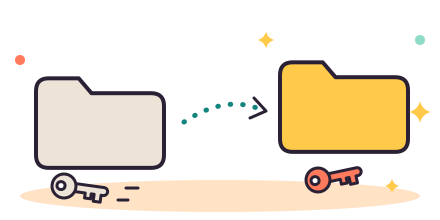
- Pause the folder on every device that stays, so nothing more arrives. (If they’re leaving on good terms, you can let everything finish syncing first.)
- Check what changed since you last trusted them, and restore what you want from the archive. Nothing proves which changes were theirs.
- Unlink the folder on every device that stays. It stops syncing and keeps the files, and the archive, as ordinary files.
- Share again. On one device, share that copy as a new folder, with brand-new keys.
- Hand out the new key yourself, the safe way. LicketySync won’t send it for you.
- Join the new folder on each of the others, over its own copy. Matching files aren’t downloaded again, and a file that differs is kept as a conflict copy. A file only the joining device still has is added for everyone; to avoid that, join into an empty folder.
What moving does not do:
- The person you removed keeps the old folder, its key and every file they had.
- Any device that misses the move keeps syncing with them.
- Storage devices start the new folder from scratch, and keep the old one until it’s unlinked there too.
- The old folder’s history doesn’t move; its archive stays on each device as ordinary files.
- Your devices keep their network IDs, the lasting IDs they go by, so the person you removed can still recognise them.
For a lost or stolen device, move every folder it held: whoever has it can use its keys for as long as those folders exist, if they get past the device’s own protection.
For the curious. The keys specification has the three keys, key strings, QR codes and links and removing someone, and the threat model has what each party sees.