The manual · 2 of 14
Setting up
What setup will suggest, and for each choice what it gives you, what it costs and what it shows, and to whom.
On this page
- How setup will ask
- What stays the same, whatever you choose
- Your device’s settings, and each folder’s
- Find devices on your local network?
- Connect directly across the internet?
- Ask your router to open a port?
- Who may help with a hole punch?
- Use public trackers?
- Use public relays?
- Connect through Tor?
- Helping others
- Changing your mind
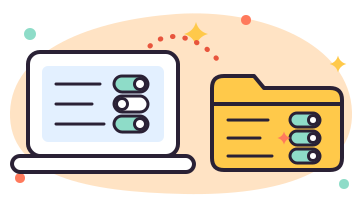
There’s nothing to set up yet: LicketySync is still being built. Here’s what setup will suggest about how your devices find and reach each other, and what each setting means. Say yes to one question, and setup is done, lickety-split.
How setup will ask
Setup will ask once, and suggest the recommended settings:
- finding devices on your local network;
- asking your router to open a port (a numbered door that lets other devices reach yours);
- public trackers, only to look things up and announce your device;
- hole punching, with help from any device yours knows of, public relays among them;
- on computers, helping the devices you share a folder with punch through;
- public relays.
Say yes, and they’ll be on. Say no, and setup will show you the settings, each at its default (on for the recommended settings, off for the rest), so you can pick each one yourself; nothing is on until you confirm them. Either way, you’ll be able to turn any of them off before a folder starts to sync. The recommended settings will never turn on Act as a relay or Help run the public trackers, and they will turn on Act as a hole-punch coordinator only for the devices you share a folder with. And until you answer, nothing is on: LicketySync contacts nothing you didn’t turn on.
What stays the same, whatever you choose
- Your files go only to devices that hold one of the folder’s keys. If relays are on, they can also pass through a relay on the way, still encrypted.
- Every connection is encrypted, and so are your files and their names, before they leave your device.
- No helper can open your files or read their names.
- The programs you install have no server of their own to call: no account, no telemetry (reports about how you use it), no update checks. The browser version will be the exception: it will load from licketysync.app each time you open it.
Your device’s settings, and each folder’s
Your answers will become your device’s settings. Each new folder starts from them, and you’ll be able to change most of them for one folder, as you make or join it or later: public trackers on for photos you’re giving away, say, and off for everything else. A setting you leave alone keeps following your device’s. A folder syncs only over the connections its own settings allow, and your other folders carry on.
A few more settings belong to the whole device only: asking your router to open a port, and helping others.
Find devices on your local network?

Devices on the same home or office network find each other by themselves, with no internet needed.
- What you get: devices on one network find each other without anyone typing anything in.
- What it costs and shows: anyone on that network, a café’s say, can see that your device runs LicketySync and roughly how many folders it offers (in steps). Anyone who has had or seen one of a folder’s keys can tell that the folder is there, and which devices on the network hold it. Anyone else there can still tell which devices share a folder, without learning which.
- The setting: in the recommended settings. Each folder can change it.
- When: being built now, with syncing on a local network.
What the local network sees, in full
While it’s on, anyone on the same network can see your device’s address and the port it listens on. Its announcements are scrambled afresh each time, with one scrambled code for each folder, so on their own they name neither your folders nor your device. Anyone who knows a folder can recognise its code; anyone your device has connected to before can recognise your device; and anyone on the network can replay an announcement and see which devices answer, and so that each holds a folder it named, without learning which folder it is.
More on How devices find each other.
Connect directly across the internet?

Direct connections let your devices reach each other straight across the internet, with nothing in the middle. Hole punching (Who may help with a hole punch?) is how two devices behind home routers get through.
- What you get: a straight line between your devices, with nobody in between carrying your data.
- What it costs and shows: any device that reaches yours, even one with no key, learns your address and your device’s network ID, which stays the same across networks and folders. It can tell roughly how many folders your device holds, but not which. Your internet provider, or anyone else watching in between, sees which addresses talk, when and how much, but not what they say.
- The setting: in the recommended settings, with hole punching. Each folder can change it, and hole punching works for a folder only while this is on.
- When: next, with hole punching.
What a device that connects to yours learns
Before any folder opens, a device that connects to yours learns your network ID and your device ID, your device’s public key, what your copy of LicketySync supports and its limits, and, from how long a check takes, roughly how many folders it holds. It learns your device’s name only once the two of you open a folder together, and which folders you hold only if it holds a key to one of them.
Ask your router to open a port?

Your device can ask your home router to open one port for it, a numbered door that lets other devices reach yours, for a limited time, and close it again when LicketySync stops.
- What you get: other devices can reach yours directly more often, so you’ll need hole punching and relays less.
- What it costs and shows: while the port is open, anyone on the internet can reach it and learn that your device runs LicketySync, and what any device that reaches yours learns (Connect directly across the internet?). Never your files, without a key.
- The setting: in the recommended settings. It belongs to the whole device, not to one folder.
- When: next, with hole punching.
More on How devices find each other.
Who may help with a hole punch?
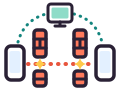
Hole punching lets two devices behind home routers reach each other directly. A helper, the hole-punch coordinator, passes their first few messages so each learns the other’s address; then both knock at once, and most routers let them through. The coordinator never carries your files.
This setting picks who may be that helper for a folder. Each choice includes the ones before it:
- Nobody. No hole punches for this folder.
- Devices you share a folder with.
- Also devices yours is connected to directly.
- Also any device yours knows of, and any public relay you’ve turned on.
- What you get: the further down the list, the more devices can help. A punch serves a folder only if both devices’ settings for it allow the helper, and it works with most home routers, not all.
- What it costs and shows: a coordinator learns that your two devices are connecting and when, their addresses and network IDs, but no folder, key or file. The further down the list, the more devices can learn this. At the last choice, which the recommended settings use, every helper your devices use, a stranger’s public relay among them, learns that they are connecting and when, and their addresses. A helper never carries file data. Only a device that shares a folder with yours, or that proves it holds a key to one, can punch through to you; anyone else gets no punch.
- The setting: hole punching is in the recommended settings, at the last choice. Each folder can change it.
- When: next.
What hole punching shows, in full
When your device can’t be reached directly, it keeps a small standing connection with up to three coordinators, so each of them knows your network ID and that your device can be reached through it, for as long as that connection lasts. The devices you share folders with learn which coordinators your device uses, and anyone you give an invite that carries your addresses learns those that share no folder with it. Someone else who tries to punch through learns at most that your device is online, and which device it is. A device that is let in for a punch can make yours send a few tiny bursts of traffic to public addresses it picks; LicketySync limits how many. Phones never coordinate, though they can be helped.
More on How devices find each other.
Use public trackers?

Public trackers (the DHT) are a public directory spread across many strangers’ computers, not a server anyone runs. With them on at both ends, devices that hold a folder’s key can look up each other’s addresses anywhere.
- What you get: your devices, and the people you share with, can find each other from anywhere. Without public trackers, you’ll sync only with devices on your network, ones found through the devices you already sync with and ones you enter yourself. Finding an address isn’t always reaching it, though: a device behind a home router may stay out of reach.
- What it costs and shows: anyone who has ever had or seen one of the folder’s keys can look up, every day, the internet addresses of the devices that offer it. People with no key can’t tell which folder an address offers, but anyone reading the directory sees your device’s address, and can tell that its entries on different days come from the same device.
- The setting: in the recommended settings, only to look things up and announce your device. Each folder can change it.
- When: next.
What else the directory shows
Each entry is filed under a code that changes every day and doesn’t name the folder. Entries on different days give away the same device by an address that doesn’t change, by the key that signs the entry or by the lasting ID your device uses in the directory. Your device only looks things up and announces itself, unless you also turn on Help run the public trackers, which the recommended settings never do.
More on How devices find each other.
Use public relays?

A relay passes encrypted traffic between two devices that can’t reach each other any other way, like a courier with sealed envelopes: it carries them, but can’t open them.
- What you get: your devices can still sync when no direct line between them can be made.
- What it costs and shows: every relay is public, so it may be a stranger’s computer. It’s shared, within limits its person sets, so it can be slower, and it can delay or cut a connection. It can’t change what’s inside. It sees both devices’ addresses and network IDs, when they talk and how much, but not which folder, and nothing it can read.
- The setting: using public relays is in the recommended settings. Each folder can change it.
- When: later.
More on How devices find each other.
Connect through Tor?

Tor is a network run by volunteers that passes connections through several computers in turn. LicketySync plans to support it later. Like most of the others, it will be a setting for your whole device that each folder can change. What it gives, costs and shows will be on this page once it’s designed.
Helping others
Three settings let your device help other people’s. They belong to the whole device, never to a folder. Acting as a hole-punch coordinator and helping run the public trackers come next; acting as a relay comes later. Acting as a relay and as a hole-punch coordinator are for computers only: a phone can be helped, but never helps. Of the three, the recommended settings will turn on only Act as a hole-punch coordinator, on computers, and only for the devices you share a folder with.
Act as a relay
Your computer passes encrypted traffic between other devices, within limits you set. You set how fast, at which times and how many at once. It announces itself only in the ways you turn on, its users learn its address and network ID, and it sees what any relay sees. There’s no private relay: to it, even your own devices are strangers. A computer that relays also helps with hole punches.Acting as a relay, in full
Act as a hole-punch coordinator
Your computer helps two devices start a hole punch by passing a few small messages, never files. When your computer helps a device, that device passes your computer’s address and network ID on to devices it shares folders with, so people you don’t know can learn them and ask your computer for a punch. It will come in two kinds: Either way, it uses far less of your connection than a relay. Every device it connects to is told that it helps, and it learns what any coordinator learns. Hole punching in detail has its limits.Acting as a coordinator, in full
Help run the public trackers
Your device answers other devices’ lookups in the directory, within limits on how much each one can ask, so strangers’ devices will contact it; without this, it only asks.
Changing your mind
You’ll be able to change any of these later for your whole device, and most of them for one folder. A reset button will put every setting back to its default: the recommended settings for your device, and your device’s settings for each folder. You’ll be able to see first whether each default is on or off.
Later versions will ask before they turn on more. If one adds a setting, or changes a recommended setting so that it allows more, that setting is off until you answer; a change that allows less applies at once, and the release will say so. A setting you’ve turned on or off yourself stays as you set it.
How devices find each other has the pictures, and Privacy sums up who sees what.