The manual · 4 of 14
How devices find each other
Your local network, public trackers, relays and hole punching: how your devices find each other and connect, explained simply.
On this page
Before two devices can sync, they have to find each other and get a connection through. There are a few ways, from the plain (you’re both on the same Wi-Fi) to the clever (hole punching), and each one shows a little to someone. Nothing is on until you’ve answered setup (what it will suggest). None of this ships yet: the local network is being built now, public trackers and hole punching come next, and relays later.
Whatever the way
- No key, no folder. A device has to prove it holds one of the folder’s keys before it gets anything of the folder, and the proof never gives the key away.
- Every connection is encrypted, on your home network as much as over the internet.
- The network in between sees the traffic, not what’s in it. Your internet provider or a café’s Wi-Fi can see which addresses talk, when and how much, and the sizes of what they send, which roughly give away the sizes of your files.
- Anyone who connects learns a little, even with no key: your device’s network ID, which stays the same wherever it goes, so they can recognise it again, and roughly how many folders it holds. Without a folder in common, not its name, and not which folders.
- A few connections could be read years from now. The fallback for networks that block everything else, and some of the browser version’s connections, use encryption a future quantum computer could break. A recording of one could then show what a storage device sees, though never your files or their names.
What a connection shows, in full
- To anyone who connects, before any folder opens: the device’s network ID and its device ID, two lasting IDs; the features and limits it supports; and, from how long it takes to turn down a folder it doesn’t hold, a rough count of the folders it does hold. Its name is sent only once a folder opens.
- To whoever answers when your device calls an address (one from a faked announcement, say): your device’s network ID, though not that it holds any folder. This is being fixed now.
- To the network in between: also how each connection is set up, and, on a network that only lets web traffic out, the name of the host it calls. Padding blurs the sizes of the encrypted pieces, but doesn’t hide how many there are, the total amount or when changes happen.
- The quantum exception: the fallback for locked-down networks, and the browser version’s connections through a relay or a coordinator or to a computer’s web-style listener, use encryption that isn’t yet built to resist a quantum computer; a fix for the fallback’s outer layer comes next. Other connections between computers are built to resist one. Cryptography in brief names the protocols.
On your local network
If you take the recommended settings, or turn it on yourself, devices on the same home or office network announce themselves to each other. Each announcement carries a coded tag for every folder the device offers, scrambled afresh each time, so only someone who knows the folder can recognise it. A device that spots a folder of its own connects.
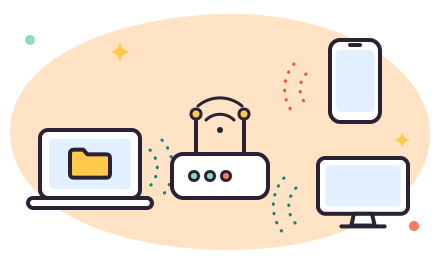
- Anyone on the network sees that your device runs LicketySync, its address and roughly how many folders it announces (in steps: 4, 8, 16, 32 or 64), and can tell the announcements all come from one device.
- Anyone who knows a folder (anyone who has ever had or seen one of its keys) can confirm the folder is here.
- Anyone your device has connected to before can tell it’s your device announcing.
- Anyone who records an announcement and plays it back can see which devices answer, and so that each of them holds a folder it named. They can tell which folder only if they know it.
LicketySync trusts no network, not even your home one: it treats every network like a café’s.
Through addresses they already know
Devices that share a folder tell each other where the folder’s other devices are, so meeting one is enough to find the rest. An invite can carry your device’s addresses too, if you add them (an invite meant for the browser version always does), and you’ll be able to type in an address yourself. So the devices you share a folder with, and anyone who gets an invite with your addresses, learn your device’s addresses, its network ID and which hole-punch coordinators it uses (an invite names only those that share no folder with it; below).
Through public trackers (the DHT)
Public trackers are a public directory spread across many strangers’ computers, with no one in charge of it: the Mainline DHT, the same one BitTorrent uses. Each day, every device that offers a folder posts a coded tag for it there, with its address, and devices that hold the folder’s key work out the same tag and look it up. The tag changes every day, and only someone who knows the folder can work it out. Setup will suggest turning public trackers on, only to look things up and announce your device, never to help run them for others; until you say yes they’re off, and a folder found this way needs them on at both ends.
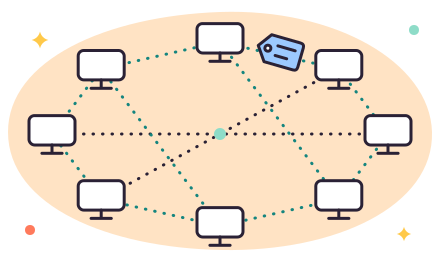
- Anyone who has ever had or seen any of the folder’s keys can find, every day, the addresses of the devices that offer it, and a read or write key also lets them read the folder.
- Anyone watching the directory sees the addresses that post, but without a key can’t tell which folder an address offers. They can tell that posts on different days, or for different folders, come from one device: its posts are signed with a key that doesn’t change and carry a lasting ID of its own in the directory, and its address may not change either.
- The computers your device asks see its address, as with any lookup.
Your device’s network ID and coordinators stay out of the directory. That also means finding isn’t always connecting: a device behind a home router that only hole punching can reach can’t be reached from the directory alone.
Hole punching
Most home routers let in replies to calls your device made, and nothing else. That’s good for safety, but it means two devices behind two home routers can’t call each other. Hole punching gets them through:
- A helper introduces them. Both devices can reach a third computer, a hole-punch coordinator, chosen ahead of time by the device that wants to be found.
- It passes a first note. The coordinator carries their first few messages, so each learns the other’s public address.
- Both knock at once. Each router sees its own device calling out, takes the other’s knock for the reply and lets it in. Knock knock, and they’re talking directly.
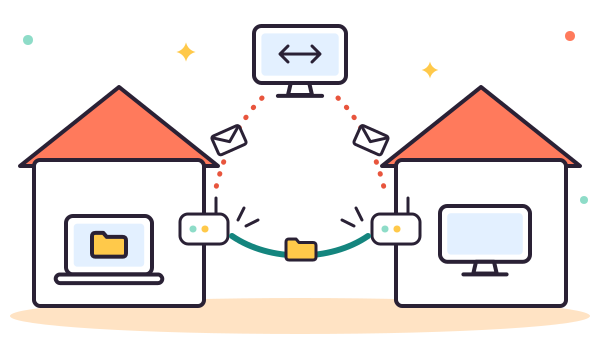
It works with most home routers, not all. If it fails, the device tries another coordinator, uses a relay if relays are on, or waits.
- The coordinator only introduces. It passes a few small messages, never your files, and needs no key to your folder.
- Who may help with a hole punch? That’s the setting, with choices from Nobody up to Also any device yours knows of, and any public relay you’ve turned on (all the choices). Setup will suggest the last. Both ends must allow the coordinator in the middle.
- Who helps. A computer coordinates only if its person turns that on, and a phone never does; a public relay coordinates too. On computers, the recommended settings will turn on helping the devices you share a folder with, never anyone else. When your computer helps a device, that device passes your computer’s address and network ID on to devices it shares folders with, so people you don’t know can learn them and ask your computer for a punch. When it helps only the devices you share a folder with, they name it only to the other devices of the folders you share, never in an invite; but anyone who holds one of those folders’ keys is one of those devices. When it helps anyone, a device it helps that shares no folder with it can also put it in its invites.
- Only a device you share a folder with, or one that first proves it holds a key to one of your folders, can punch through to you. Anyone else learns at most that your device is online, and what any connection shows.
- The coordinator learns that two devices are connecting and when, their addresses and network IDs, and which devices keep a standing connection to it. Not the folder, the keys or the files. With the recommended settings, every helper your devices use learns this, a stranger’s public relay among them, and none ever carries file data.
- A device you let in could misuse a punch, a little, to make yours send a few tiny bursts of traffic to addresses it picks, your own router among them.
Hole punching, in numbers
- A coordinator carries at most 64 KiB of set-up for each punch, and closes it after 60 seconds.
- A device keeps a connection open to up to three coordinators; one trying to reach it tries at most three, two at a time. Each coordinator also learns which devices keep a connection open to it.
- Each device takes part in at most 4 punches at once and 20 a minute, so a device it let in can make it send at most 160 short bursts a minute, to at most 8 addresses each time.
- A punch knocks only on public internet addresses, never private ones such as 192.168.x.x, except behind an address translator your device can’t see into, or a split-tunnel VPN. Those public addresses can include other devices on your network that have public IPv6 addresses.
These are starting values, to be settled when hole punching is built.
Relays
When nothing else gets through, a relay can carry the traffic: a go-between that passes along sealed envelopes it can’t open. The two devices’ encrypted connection runs through it, end to end.
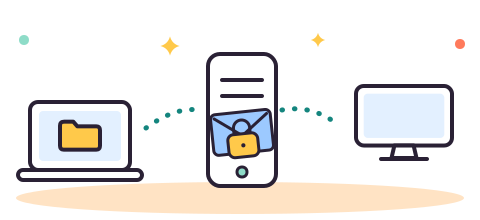
- Every relay is public: any computer whose person turned relaying on, a friend’s or a stranger’s. Your device can’t tell your own computers from a friend’s, so it treats every relay as a stranger’s.
- Using relays is a switch for each folder. It’s off until you answer setup, which will suggest turning it on. Acting as a relay is set for the whole computer, off, with limits its person sets; setup never suggests it, and phones never relay. A computer that relays also helps with hole punches.
- A relay sees both devices’ addresses and network IDs, when they talk and how much, and the sizes of the encrypted pieces. Not the folder, the files, their names or the keys. It can slow or cut a connection, but it can’t read or change what passes.
Your router may open a door
Setup will also suggest letting LicketySync ask your home router to open one port for it, a numbered door that lets other devices reach yours directly, for a limited time. It’s a setting for the whole device. While the port is open, anyone on the internet can reach it and learn that your device runs LicketySync, and its network ID. Without a key, that and what any connection shows is all they get.
What setup will suggest
Setup will ask once, and suggest the recommended settings: Setting up lists them, with what each gives, costs and shows. Say yes, and they’ll be on; say no, and it will open the settings, so you can choose each one. Before you answer, nothing is on. Each folder can change most of them for itself; asking your router to open a port, and helping others, belong to the whole device. Privacy sums up who sees what.
For the curious. The threat model’s “What stays visible” says who learns what, and its requirements cover public trackers, relays, hole punching and port mapping, and the fine print is on For IT and privacy reviewers. The protocol’s “The index in plain words” explains relays and hole punching near its end.